| Support Category: Login Request |
| Specialist Notes: |
When a user comes into chat requesting a password reset, please confirm if the user is an Employee, Contractor, or State Examiner. After confirming they're a State Examiner, please use this SR first: State Examiner | SSO
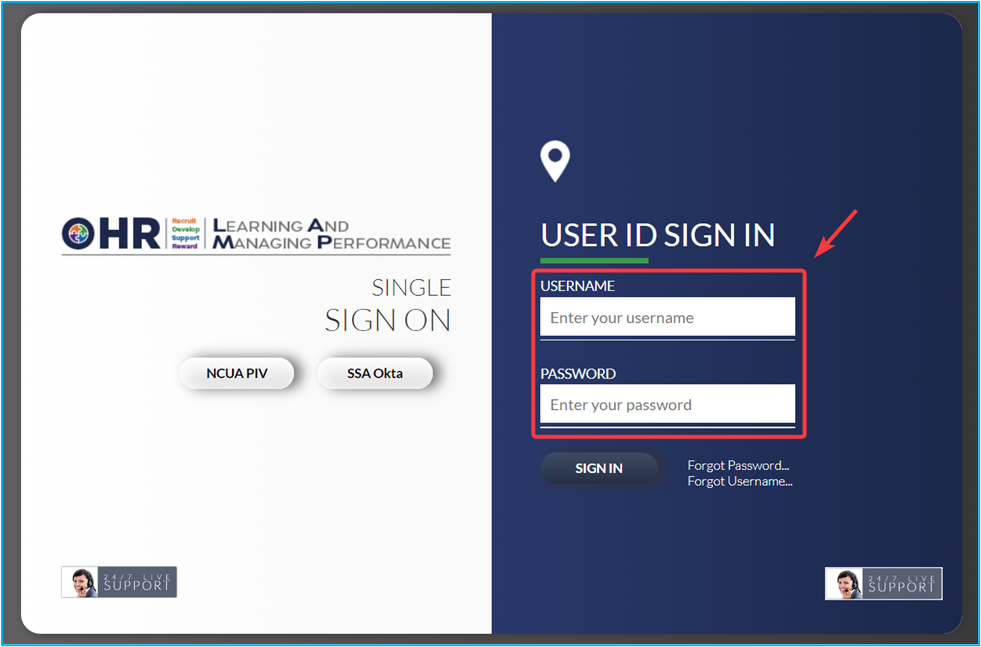
If the user already confirmed they are unable to log in by clicking the 'SSA Okta' button or by clicking the LAMP link via their NCUA Connect app, please proceed to reset their password by clicking the 'Send Forgot Password email' option, then provide the SR.
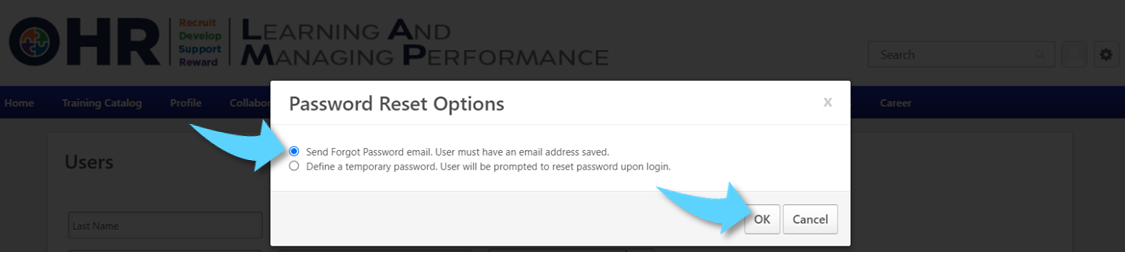
IMPORTANT! If the user states they’re not receiving the reset link, and they have checked the spam/junk folder, we can proceed to manually reset the password by selecting the ‘Define a temporary password’ option and entering the Freshchat generated password. |
Instructions for processing login requests in CSOD can be found here.
| Standard Response: |
Thank you for waiting. I have reset your password so that you may log in to LAMP while you work with OneStop to resolve the SSO issue. You should receive an email from noreply-lamp@ncua.gov with a link to reset your password. Your username should be your full government-issued (.gov) email address.
Please be aware that this 'URL' link is only valid for 48 hours. After the 48-hour validity period, clicking this link will direct you to a page on which you must enter your login name to generate another email with a new link.
Once you have set a new password, please note you will need to enter your login credentials under the 'User ID Sign In':